Learning Goals
At the end of this Tutorial, you will be able to:
- Select font families from the Google Fonts website.
- Add Google Fonts HTML code to the <head> of a web page.
- Use a Google Font with TailwindCSS.
- Apply different fonts to headings and paragraphs.
About Google Fonts
Google Fonts provides a large collection of open-source fonts that can be used on web pages.
A font family is the design of the characters used to display text. Examples include Merriweather, Lato, Oswald and Montserrat.
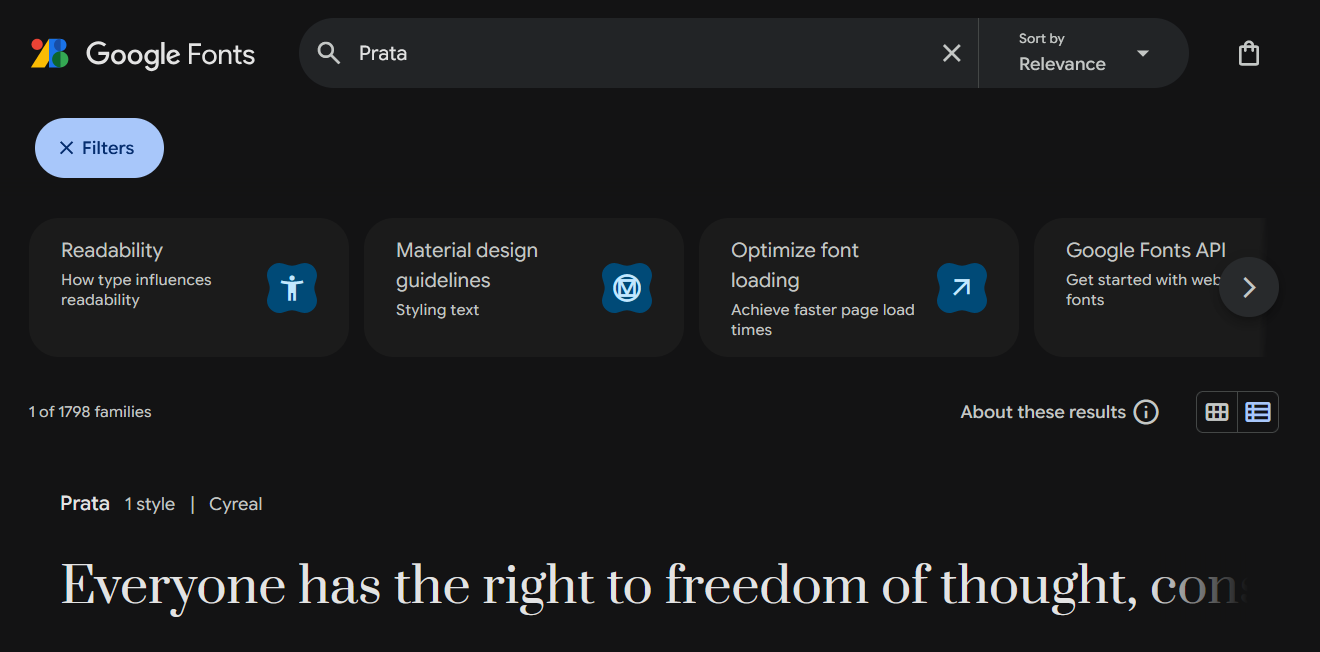
To select a particular font-family, enter its name in the search box at the top of the home page.
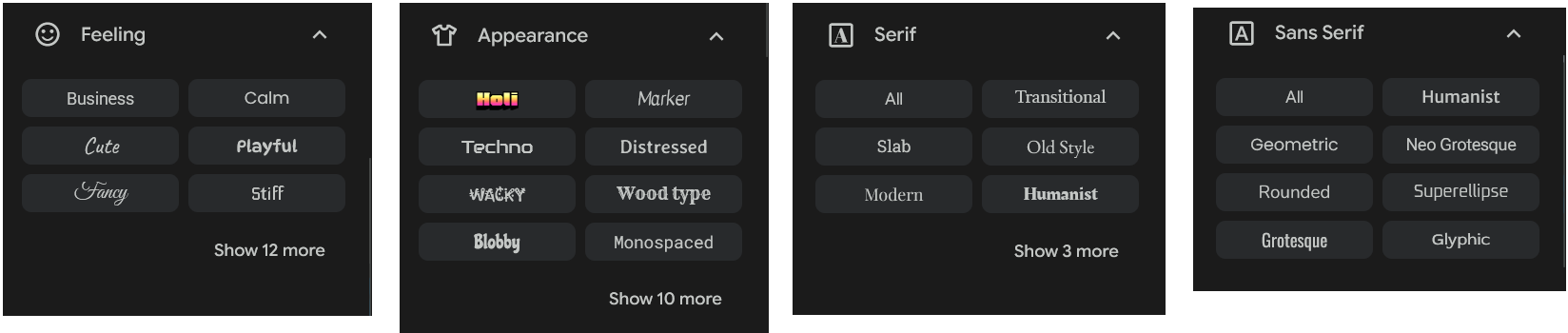
To see a list of font-families that meet certain criteria, choose from the filtering options at the left of the home page.
Popular fonts in 2026
As with much else, there are fashions and trends in fonts. Here are the more widely-used serif and sans-serif fonts at the moment.
| SERIF FONTS | SANS SERIF FONTS |
|---|---|
| Playfair Display (headings) | Bebas Neue (headings) |
| Prata (headings) | Work Sans |
| Abril Fatface (headings) | Source Sans Pro |
| PT Serif | Rubik |
| Domine | Outfit |
| Libre Baskerville | Montserrat |
| Roboto Slab | Open Sans |
For inspiration in choosing fonts and font combinations, see Further resources.
Google Fonts: the three steps
There are three basic steps to using Google Fonts in a TailwindCSS web page.
- Select your font: From the Google Fonts website you choose the font-family or combination of font-families you want to use for a particular website.
- Copy-and-paste: You copy the HTML code generated by the Google Fonts website into the <head> of every page on which you want to use your chosen font(s).
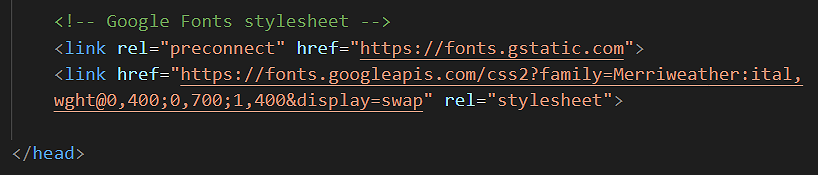 In the example above, the name of the font is ‘Merriweather’.
 - Apply the font. Use the font name in your TailwindCSS style rules.
For example, to use the ‘Merriweather’ font for am entire web page, you would update body selector as follows.
 And if you wanted to use the ‘Work Sans’ font for your <p> text paragraphs, you would edit the p selector as follows.
 Note that the font name is always wrapped in a pair of single or double quotation marks.
Font weight and Google Fonts
Many Google Fonts are available in several font weights.
Examples include:
- 400 — normal
- 500 — medium
- 600 — semibold
- 700 — bold
TailwindCSS provides utility classes for these common weights.
| TailwindCSS | Meaning |
|---|---|
| font-normal | Normal font weight. |
| font-medium | Medium font weight. |
| font-semibold | Semibold font weight. |
| font-bold | Bold font weight. |
When selecting a font from Google Fonts, make sure the font weights you want to use are included in the code generated by Google Fonts.
Next, you will add Google Fonts to the page-4.html and page-5.html sample files you created in the previous Working with Images Tutorial.
Using a Google Font with TailwindCSS
Your web page already contains a <style type="text/tailwindcss"> block in the <head>.
You can use the Google Font directly in a TailwindCSS arbitrary value.
For example:
body {
    @apply font-['Merriweather'];
}
The square brackets tell TailwindCSS to use a custom value.
The underscore character can be used in place of a space when a font name contains more than one word.
For example:
body {
    @apply font-['Playfair_Display'];
}
This applies the selected Google Font to the entire web page.
Working with the van Gogh web page
You will begin by working with the sample page-4.html web page.
Obtaining the Google Fonts code
Your first task is to go to the Google Fonts website, select the weight/styles of your required font-family, and then to copy the related HTML code.
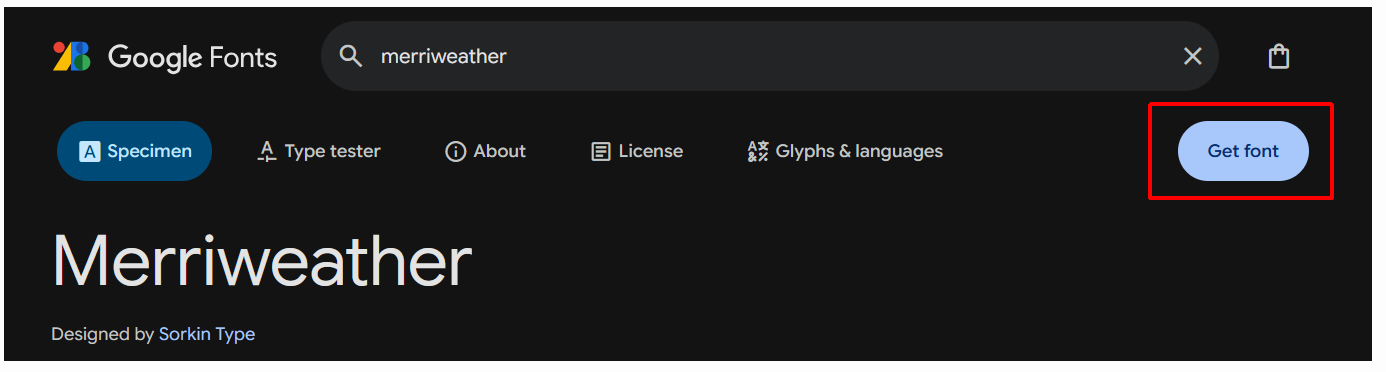
- In your web browser, go to the Google Fonts website at the address below: https://fonts.google.com
- In the Search box at the top of the screen, type the font-family (typeface) name of Merriweather.
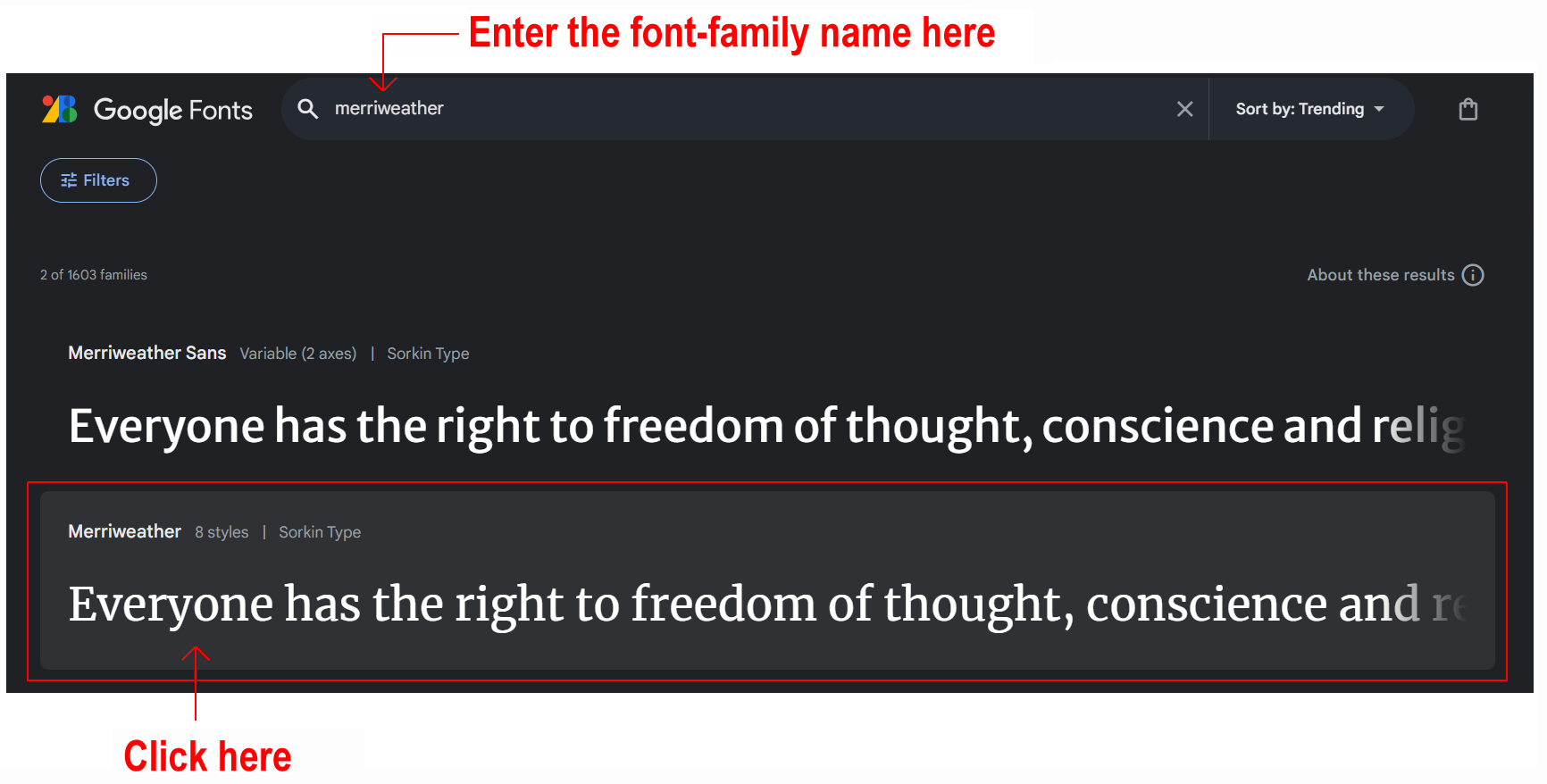 Next, in the search results displayed in the lower half of the screen, click on Merriweather.
 - At the top-right of the screen click the Get font button.
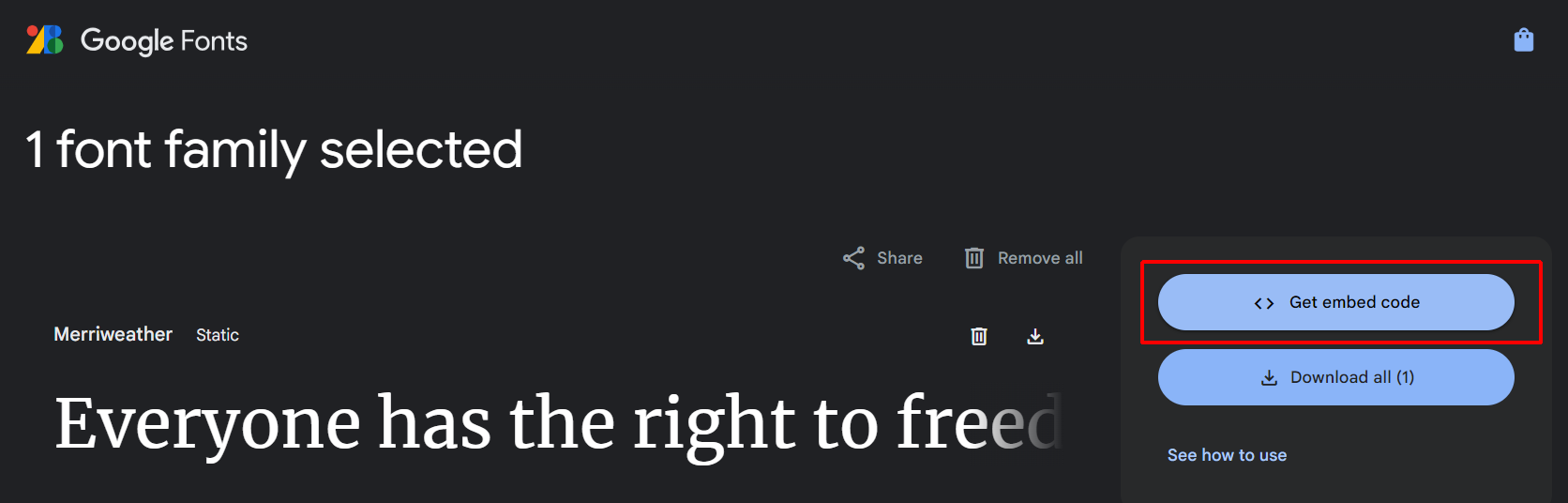
- Next, click the Get embed code button.
- At the right of the screen, you can see that Google Fonts has created the relevant HTML code.
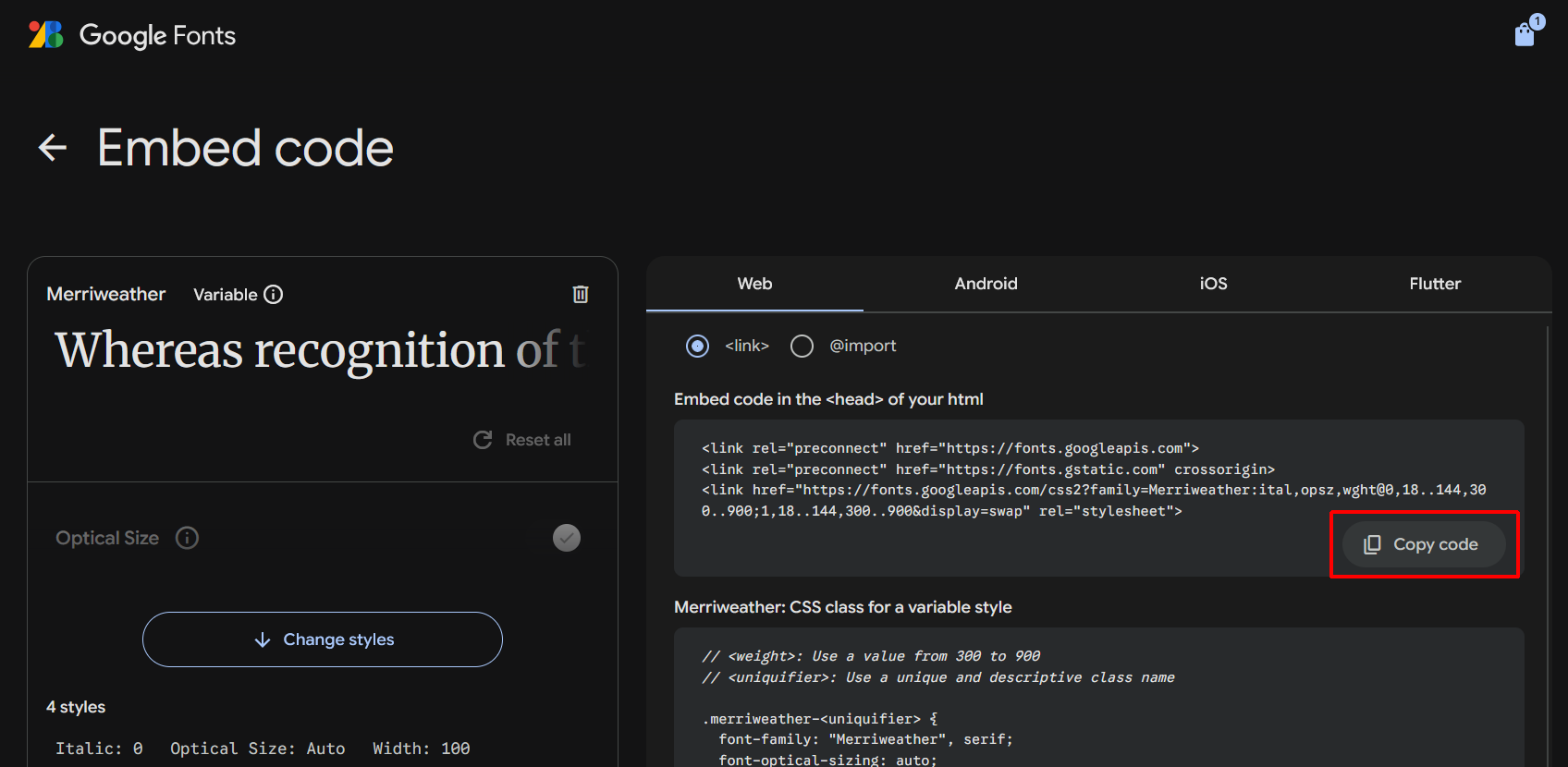 Click the Copy code button to copy the HTML code.
 - You can now close the Google Fonts tab in your web browser.
Updating page-4.html with the font link
Next, you will paste the HTML code you copied from Google Fonts into your web page.
- In VS Code, open the page-4.html web page.
- In the <head> of the web page, paste the copied HTML code just before the closing </head> tag.
Optionally, add the following comment line just above the pasted Google Fonts code.
<!-- Google Fonts -->Your web page <head> should now look similar to that below.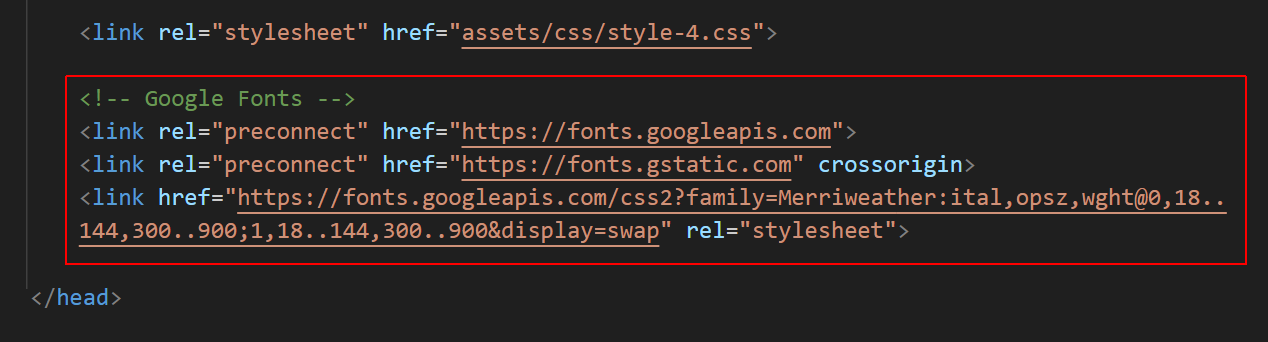
- Save your page-4.html web page.
When you view the page-4.html page in a web browser, you can see nothing has changed. For your selected Google Font to display, you also need to update the styles for the page.
Updating the page-4.html styles
Here are the steps.
- In VS Code, add the following new CSS selector and TailwindCSS style rule.

- Save your page-4.html file and view it in your web browser.
In this example, you are using only a single font-family for all the text: headings, sub-headings and paragraphs.
✅ Task completed. You can now close this web page.
Working with the Tourism web page
Next, you will work with the sample page-5.html web page. You will add two fonts: Oswald (for headings and sub-headings) and Lato (for text paragraphs).
- In your web browser, go to the Google Fonts website at the address below: https://fonts.google.com
- At the top-right of the screen, you can see an icon with the number 1. Google Fonts has 'remembered' you have previously chosed one font-family. In this case, the Merriweather family.
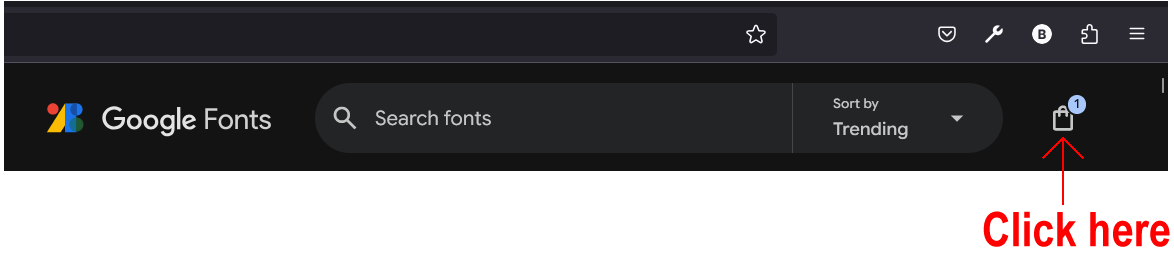 Click on the icon.
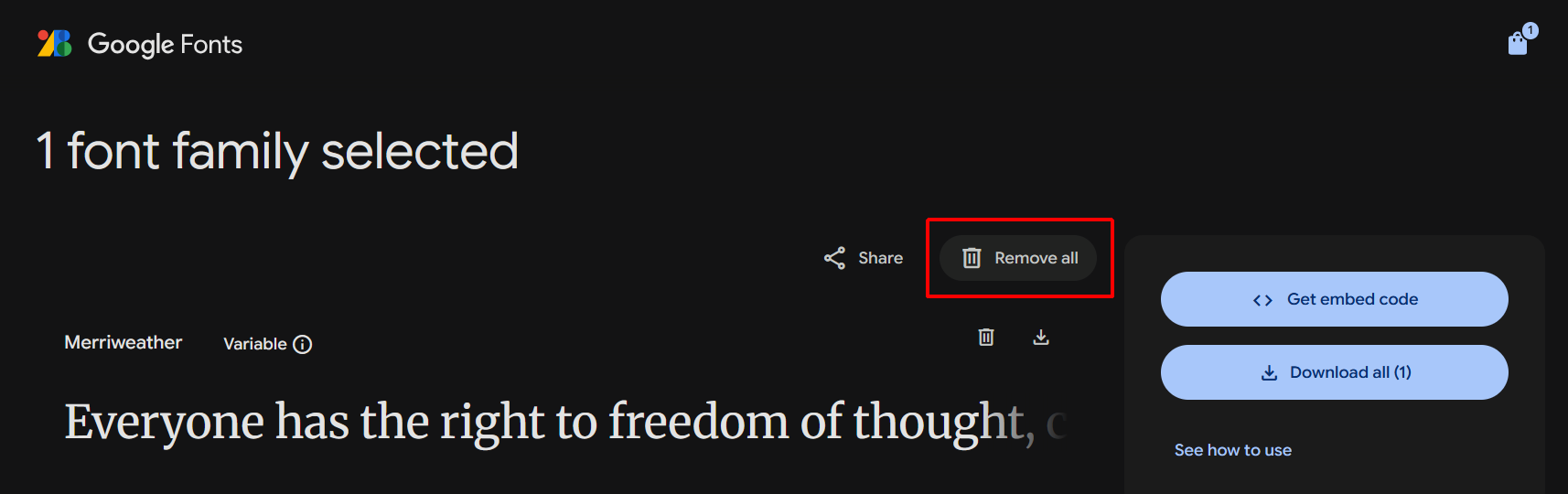
 - On the next screen display, click the Remove all button.
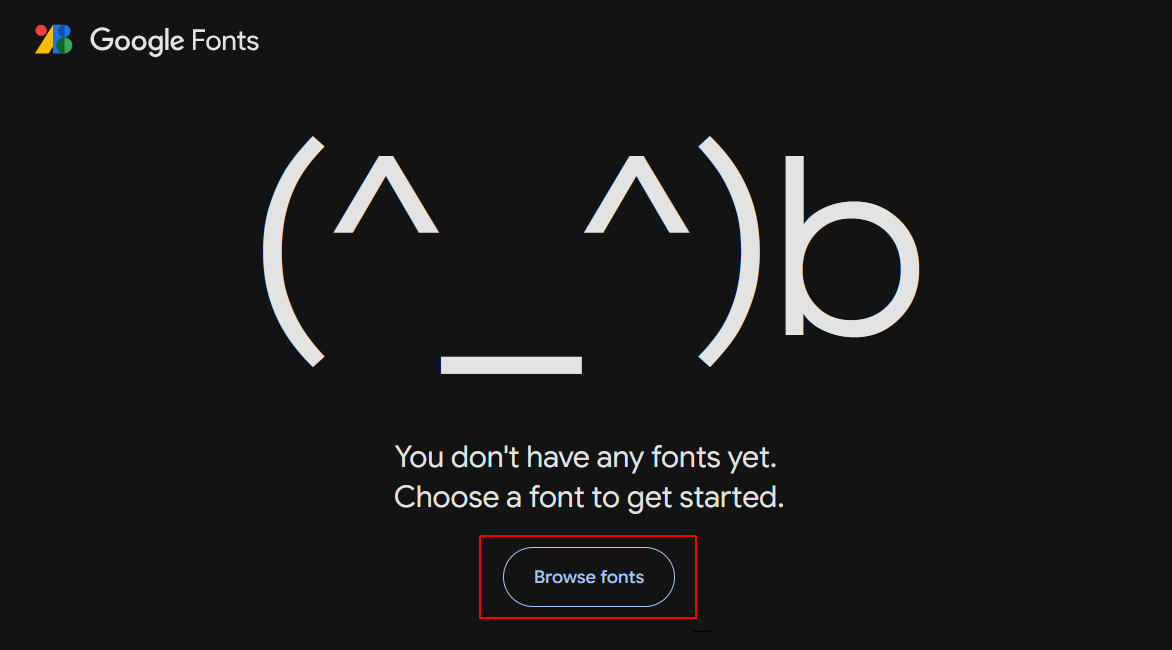
- You are now shown a screen similar to the following. Click the Browse fonts button to return to the Google Fonts home page.
- In the Search box at the top of the screen, type the font-family (typeface) name of Oswald and then click this font-family in the search results. This is a condensed (‘narrow’) font-family suitable for headings. For paragraphs of text, however, it can be difficult to read.
- On the next screen, click the Get font button, and on the screen after that, click Get embed code.
- Do not yet copy the HTML code. You want to add a second font to the list of fonts for copying-and-pasting.
- Instead, click the Home icon at the top-left of the screen.

- In the Search box at the top-left of the screen, type the font-family name of Lato and then click this font-family in the search results.
- On the next screen, click Get font. Google Fonts now displays the two font families you have selected.
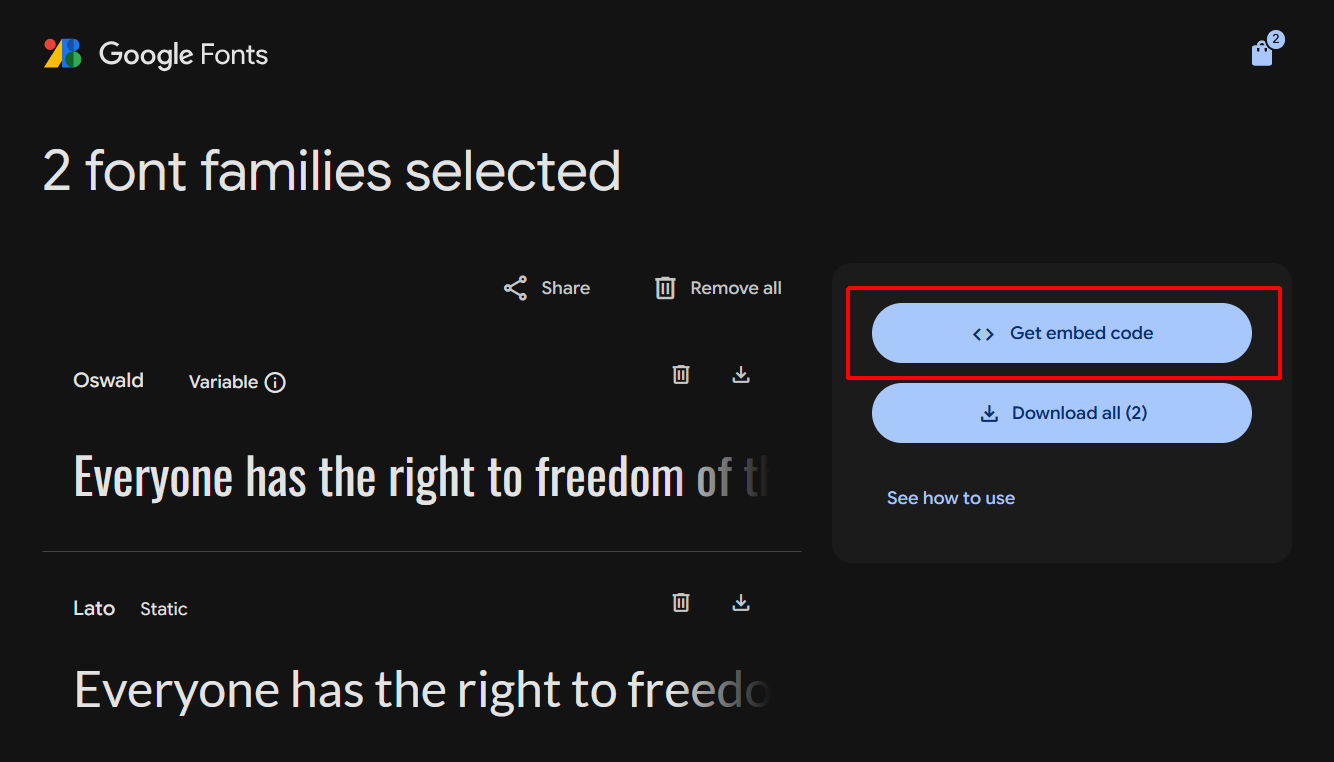 Click Get embed code.
 - At the right of the screen, you can see that Google Fonts has created the relevant HTML code for the two font families.
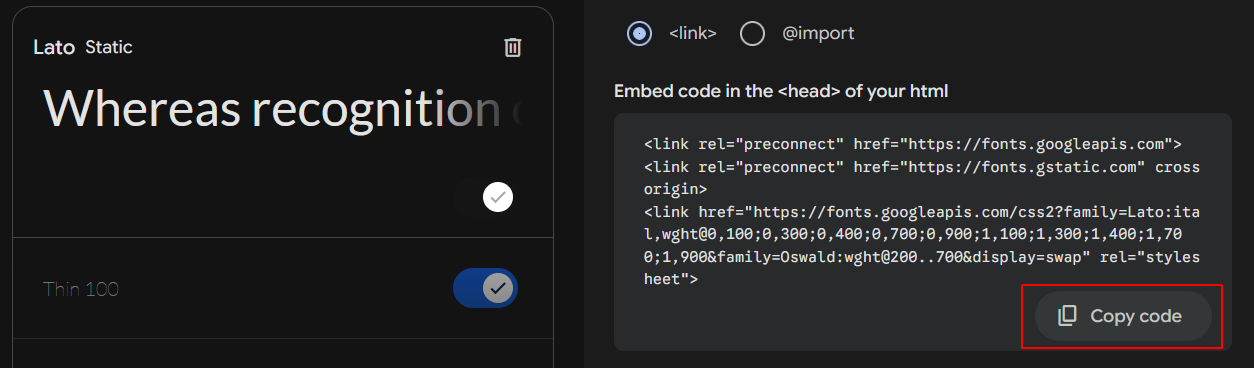 Click the Copy code button to copy the HTML code.
 - You can now close the Google Fonts tab in your web browser.
Updating page-5.html with the font link
Next, you will paste the HTML code you copied from Google Fonts into your web page.
- In VS Code, open the page-5.html web page.
- In the <head> of the web page, paste the copied HTML code just before the closing </head> tag.
Optionally, add the following comment line just above the pasted Google Fonts code.
<!-- Google Fonts -->Your web page <head> should now look similar to that below.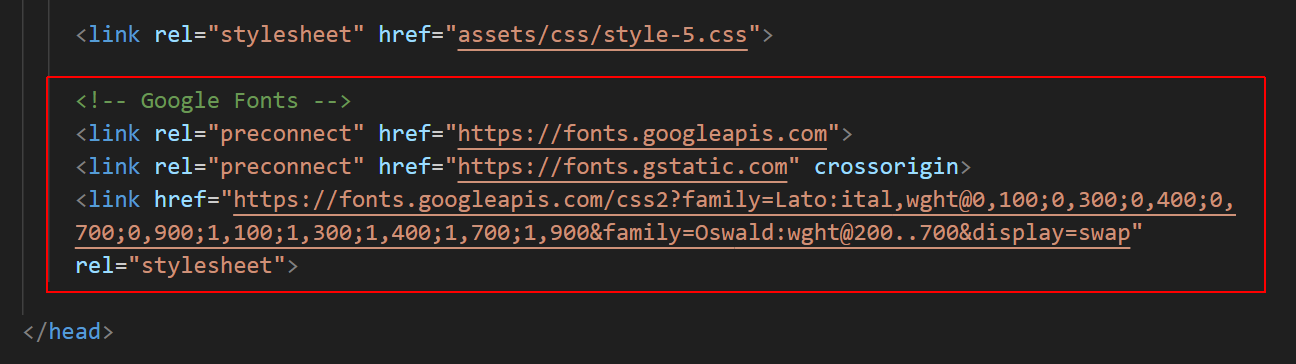
- Save your page-5.html web page.
When you view the page-5.html page in a web browser, you can see nothing has changed. For your selected Google Font to display, you also need to update the web page's styles.
Updating the page-5.html styles
Here are the steps.
- You will use the Oswald font for headings and the Lato font for text paragraphs. Update the style selectors as shown below.
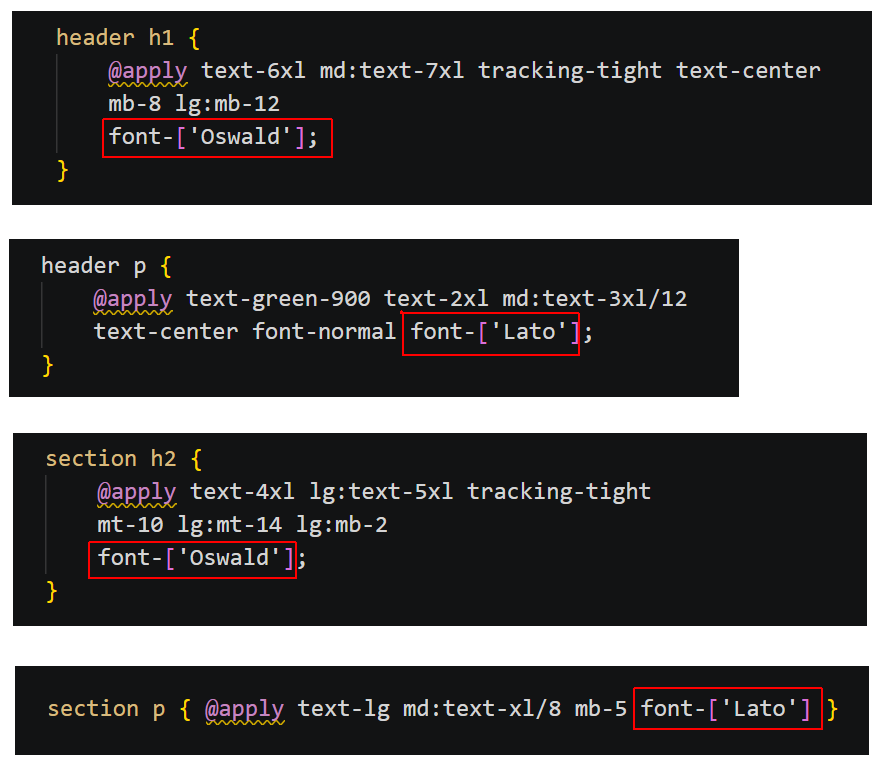
- Save your html-5.html file and view it in your web browser.
✅ All done. You can now close this web page.
Uploading your files to GitHub
You are now ready to upload your work to your account on GitHub.
- Open a new tab in your web browser and go to github.com. If you are not already signed in to your GitHub account, sign in now.

- On your GitHub home page, click the ‘repo’ that holds your web pages. Its name will look as follows, where username is your chosen username on GitHub.
username.github.io

- On the next GitHub screen displayed, near the right of the screen, you can see a button named Add file. Click on it.
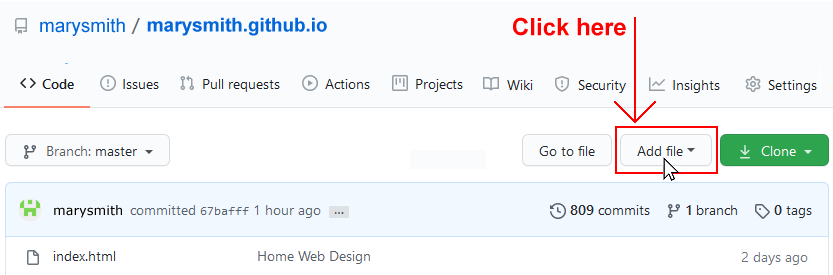
- From the dropdown list displayed, choose the option Upload files.

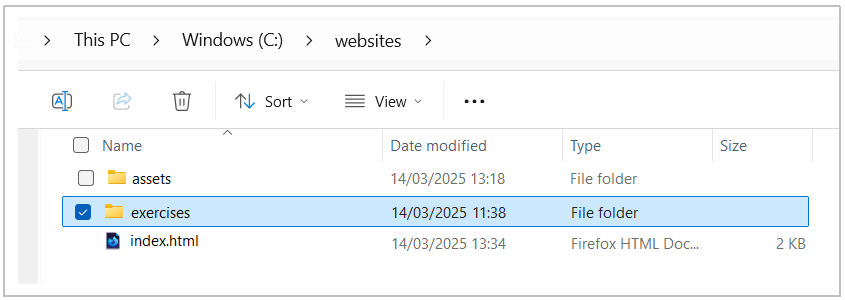
- In File Explorer (Windows) or Finder (Apple Mac), drag-and-drop your 📁 exercises sub-folder to upload it to your repository on GitHub.
- Scroll down to the bottom of the GitHub screen, and accept or edit the short message (Add files via upload) in the Commit changes box.
- Finally, click the green Commit changes button to upload your files.
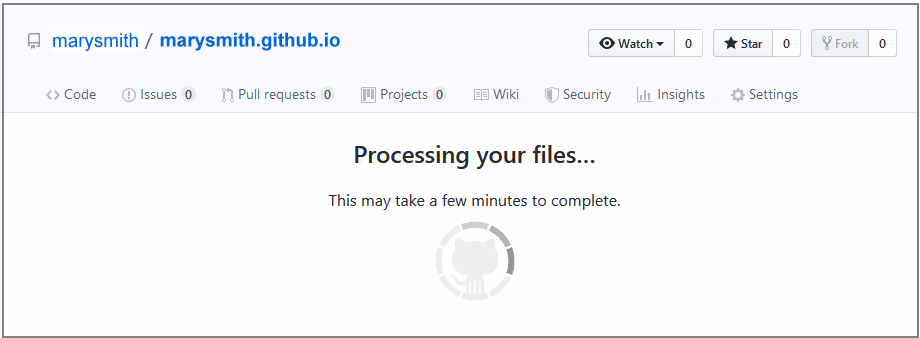
Your updated two sample pages are now published on GitHub at web addresses similar to the following:
https://username.github.io/exercises/page-4.html
https://username.github.io/exercises/page-5.html
It may take a few minutes for your uploaded files to appear on GitHub.