Learning Goals
At the end of this Tutorial, you will be able to:
- Add a background video to a hero block.
- Add a poster image that displays while the video is loading.
- Use TailwindCSS to make the video fill the hero block.
- Position hero text and a tinted overlay in front of the video.
About hero blocks with background videos
As Internet connection speeds grow faster and faster, hero blocks and other elements on web pages are increasingly using background videos. These are short videos of about 10 seconds that play in a continuous loop.
See the examples below.
Not all users have fast Internet connection speeds, however. So it is good practice to include a background image that displays until the video finishes downloading.
Here are some sources of free videos you can use as backgrounds:
In this Tutorial, you will create a hero block with a background video and a tinted overlay. See below.

A background video should also have a poster image. This is a still image displayed while the video is downloading or if the video cannot immediately be played.
In this Tutorial, you will update the hero block created in the previous Hero Blocks with Images Tutorial.
Working with your sample files
- In VS Code, open your hero-image.html file.
- Save a copy with the new filename hero-video.html.
- Change the page title and description to the following:
<title>Hero Block with Video</title> <meta name="description" content="A hero block with a background video that plays in a continuous loop and includes a tinted overlay."> - Create a new sub-folder in your exercises/assets folder named videos and save the following image to it:
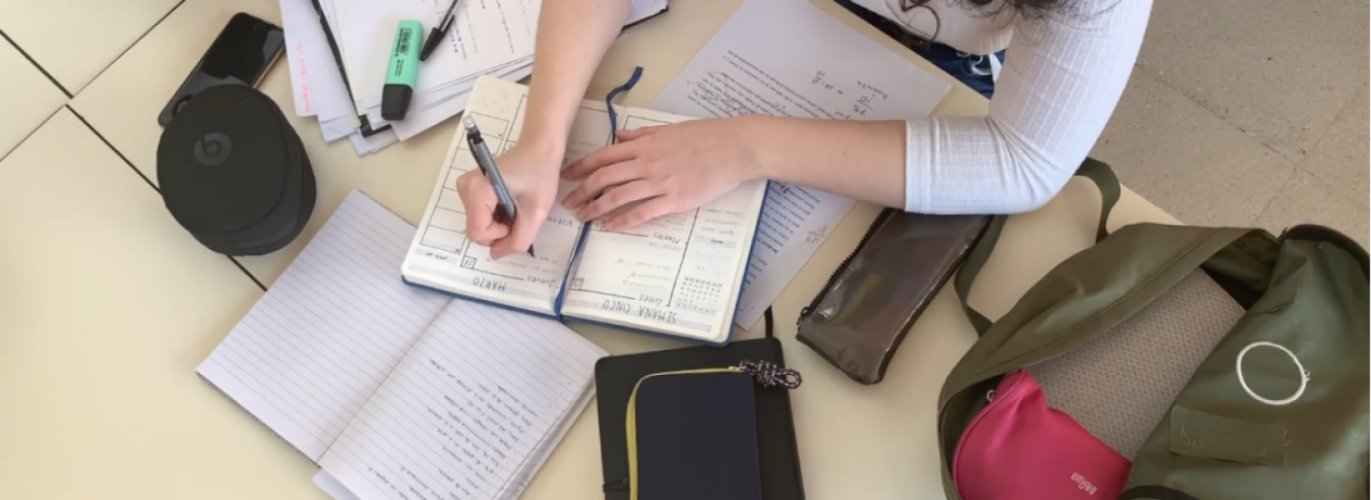 hero-still.jpg
Downloading the background video
Your next action is to download a free-to-use video from the Pexels website.
- Click the link below to open a new web browser tab that offers a video for download. Girl Writing on Her Notebook
- At the top right of the screen, click the arrow at the right of the Free Download button.
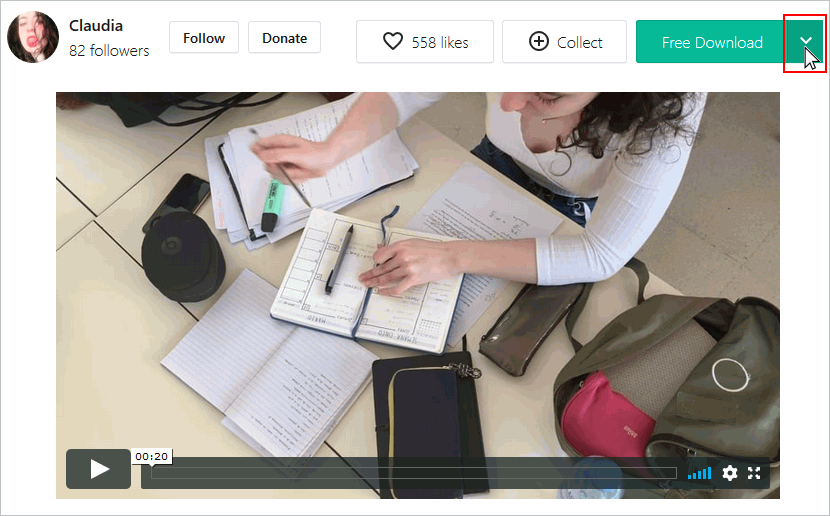
- For the video resolution, click the Original (1920 x 1080) option.
 And then click the Free Download button.
 - Copy the downloaded video to your websites/exercises/assets/videos sub-folder.
- As a final step, rename the video file from Pexels Videos 2086113.mp4 to hero-video.mp4.

You are now ready to work with the downloaded and renamed video.
Adding a poster image
The poster image is displayed before the video begins playing.
Because it appears near the top of the page, you can preload it in the <head>.
Add:
<link rel="preload" href="assets/videos/hero-still.jpg" as="image">This tells the browser that the poster image should be loaded early.
Remove the preloaded business.jpg link from the previous Tutorial.
Adding the background video
Unlike a CSS background image, a video must be added to the HTML with the <video> tag.
Add the video as the first child element inside the <header>:
<header>
    <video
        autoplay
        muted
        loop
        playsinline
        poster="assets/videos/hero-still.jpg">

        <source
            src="assets/videos/hero-video.mp4"
            type="video/mp4">
    </video>

    <h1>Education for Life</h1>

    <h2>A brighter career and future</h2>

</header>
About the video attributes
The <video> tag contains several important attributes.
| Attribute | Purpose |
|---|---|
| autoplay | Starts playing the video automatically. |
| muted | Turns off the video's sound. |
| loop | Starts the video again when it reaches the end. |
| playsinline | Allows the video to play within the web page on mobile devices. |
| poster | Specifies the still image displayed before the video begins playing. |
The muted attribute is particularly important because browsers generally restrict automatic playback of videos that contain audible sound.
Removing the old background image
Your previous hero block used a CSS background image.
Remove the following utilities from the header style rule:
bg-[url('assets/img/business.jpg')]
bg-cover
bg-center
The video element will now provide the visual background instead.
Positioning the video
The video needs to fill the entire hero block without affecting the position of the headings.
First, ensure that the <header> has the relative utility:
header {
    @apply relative
           min-h-[60vh] md:min-h-[80vh]
           flex flex-col justify-center
           px-8 lg:px-60 py-12
           text-center
           overflow-hidden;
}
The relative utility creates a positioning reference for the video.
The overflow-hidden utility prevents any part of the video from extending beyond the hero block.
Making the video fill the hero block
Add the following TailwindCSS style rule:
header video {
    @apply absolute inset-0
           w-full h-full
           object-cover;
}
The utilities work as follows:
| TailwindCSS | Meaning |
|---|---|
| absolute | Removes the video from the normal document flow and positions it inside the header. |
| inset-0 | Sets the top, right, bottom and left positions to zero. |
| w-full | Makes the video as wide as the hero block. |
| h-full | Makes the video as tall as the hero block. |
| object-cover | Resizes the video so that it completely fills the available area while keeping its proportions. |
The object-cover utility performs a similar job for the video element as bg-cover did for the CSS background image in the previous Tutorial.
Positioning the video content
The most important part of a video is not always in the centre of the frame.
You can use TailwindCSS object-position utilities to change which part of the video remains visible when object-cover crops it.
For example:
header video {
    @apply absolute inset-0
           w-full h-full
           object-cover object-center;
}
Other options include:
- object-top
- object-bottom
- object-left
- object-right
You can also change the position responsively:
header video {
    @apply object-center md:object-top;
}
Keeping the tinted overlay
The tinted overlay from the previous Tutorial can remain in place.
For example:
header::before {
    content: "";
    @apply absolute inset-0
           bg-linear-to-b
           from-blue-950/70
           to-pink-900/30;
}
The overlay now sits between the video and the hero text.
The layers are:
- Background video
- Semi-transparent overlay
- Hero text
Keeping the text above the video
The hero headings still need to appear above the video and overlay.
Use:
header h1,
header h2 {
    @apply relative z-10;
}
The z-10 utility places the headings above the other visual layers.
Hero blocks with videos: summary
| TailwindCSS | Purpose |
|---|---|
| relative | Creates the positioning context for the video and overlay. |
| overflow-hidden | Prevents the background video from extending outside the hero block. |
| absolute | Positions the video independently of the normal document flow. |
| inset-0 | Positions the video against all four edges of the hero block. |
| w-full | Makes the video fill the available width. |
| h-full | Makes the video fill the available height. |
| object-cover | Scales the video to cover the hero block while preserving its proportions. |
| object-center | Positions the visible video content around its centre. |
| z-10 | Places the hero text above the video and overlay. |
Updating your website home page
Open your index.html file and add a hyperlink to your new hero-video page.
<p><a href="exercises/hero-video.html">Hero block with background video</a></p>Save your home page and view the result in your browser.
Working with video files for hero blocks
Before embedding a video file in a web page, here are two open-source apps to help you generate a poster image:
- VLC Media Player (Windows, macOS): Open your video file and pause the video at the frame you want to use as your poster image. Go to Video | Take Snapshot in the menu (on Windows) or Playback | Video | Snapshot (on macOS). The snapshot will be saved in your default pictures folder. (You can configure this in VLC settings).
- Shotcut (Windows, macOS): Open your video file and move the playhead to the frame you want. Go to File | Export Frame to save the current frame as an image.
The smaller the size of a video file, the faster it will load in a web page. Here are two open-source apps for compressing video files without significantly losing quality:
- Handbrake (Windows, macOS): Open your video file and select Very Fast 480p30. Check the Web Optimized box to ensure the video streams efficiently. Adjust bitrate or quality settings if needed to further reduce the size. Click Start Encode to compress your video file.
- FFmpeg (Windows, macOS): You can compress a video file by running a command like:
ffmpeg -i input-video.mp4 -vcodec libx264 -crf 28 output-video.mp4
Note: No background video clip should have a file size larger than about 20MB. About 10-12MB is best.
Uploading your files to Github
You are now ready to upload your work to your account on Github.
- Open a new tab in your web browser and go to Github.com. If you are not already signed in to your Github account, sign in now.

- On your Github home page, click the ‘repo’ that holds your web pages. Its name will look as follows, where username is your chosen username on Github.
username.github.io

- On the next Github screen displayed, near the right of the screen, you can see a button named Add file. Click on it.

- From the dropdown list displayed, choose the option Upload files.

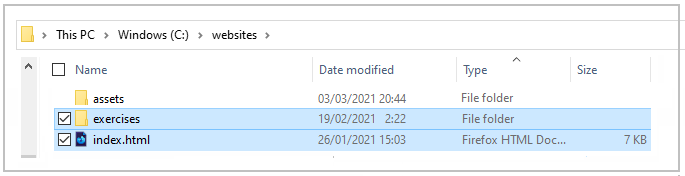
- In File Explorer (Windows) or Finder (Apple Mac), drag-and-drop your index.html file and your 📁 exercises sub-folder to upload them to your repository on Github.
- Scroll down to the bottom of the Github screen, and accept or edit the short message (Add files via upload) in the Commit changes box.
- Finally, click the green Commit changes button to upload your files.
Your updated home page and sample web page are now published on Github at web addresses similar to the following:
https://username.github.io/index.html
https://username.github.io/exercises/hero-video.html
It may take a few minutes for your uploaded files to appear on Github.