Learning Goals
At the end of this Tutorial, you will be able to:
- Add a background image to a hero block with TailwindCSS.
- Resize and position a background image so that it fills the hero block.
- Use TailwindCSS positioning utilities to stack elements on top of one another.
- Add a text shadow to make hero text easier to read.
- Add a semi-transparent tinted overlay between the background image and the hero text.
About full-width hero backgrounds
Hero blocks with full-width background images are a common feature of modern websites.
The image fills the background of the hero block while headings and other content appear in front of it.

In this Tutorial, you will update the hero block created in the previous Tutorial so that it contains:
- a full-width background image;
- large text positioned in front of the image;
- a text-shadow effect; and
- a semi-transparent dark overlay between the image and the text.

Working with your sample files
In this Tutorial, you will create a copy of the web page you completed in the previous Hero Blocks with Text Tutorial.
- In VS Code, open your hero-text.html file.
- Save a copy with the new filename hero-image.html.
- In the new file, change the page title and description to the following:
<title>Hero Block with Image</title> <meta name="description" content="A hero block with a background image and a tinted overlay."> - Finally, save the following image to your websites/exercises/assets/img sub-folder:
 business.jpg
You now have the two files you need for this Tutorial.
Preloading the hero image
Because the hero image is one of the first large items displayed on the page, you can tell the browser to give it priority when loading the page.
Add the following line inside the <head>, before the TailwindCSS script:
<link rel="preload" href="assets/img/business.jpg" as="image">Adding the background image
You do not need to add an <img> element to the hero block.
Instead, the image can be applied directly to the <header> as a CSS background image.
Update your existing header style rule as follows:
header {
    @apply min-h-[60vh] md:min-h-[80vh]
        bg-[url('assets/img/business.jpg')]
        bg-cover bg-center
        flex flex-col justify-center
        px-8 lg:px-60 py-12
        text-center;
}
The new TailwindCSS utilities are:
| TailwindCSS | Meaning |
|---|---|
| bg-[url('assets/img/business.jpg')] | Adds the image as the background of the hero block. |
| bg-cover | Resizes the image so that it completely fills the hero block while keeping its proportions. |
| bg-center | Positions the centre of the image at the centre of the hero block. |
The bg-cover utility may crop some parts of the image if the proportions of the image and hero block are different.
Changing the position of the background image
The most important part of an image is not always at its centre.
TailwindCSS provides several utilities for changing the position of a background image.
For example:
- bg-center
- bg-top
- bg-bottom
- bg-left
- bg-right
You can also change the image position at different viewport widths.
For example:
header {
    @apply bg-center md:bg-top;
}
This displays the image centred by default and moves its position towards the top at viewport widths of 768px and above.
Stacking content in front of the background
The next step will be to place a semi-transparent colour layer between the background image and the hero text. This called an overlay.
This requires the use of CSS positioning and stacking.
The parent <header> element will use:
relativeThis establishes the <header> as the positioning area for any absolutely-positioned content inside it.
The relative utility makes the <header> the positioning reference for absolutely positioned child or pseudo-elements.”
Add relative to your header style rules:
header {
@apply relative
    min-h-[60vh] md:min-h-[80vh]
    bg-[url('assets/img/business.jpg')] bg-cover bg-center
    flex flex-col justify-center
    px-8 lg:px-60 py-12
    text-center;
}
Your web page should now look as follows:

Adding a semi-transparent overlay
A dark transparent overlay can make white text easier to read against a detailed background image. You can use the CSS ::before pseudo-element for this purpose.
Add the following style rule:
header::before {
    content: "";
    @apply absolute inset-0 bg-black/40;
}
This creates a new invisible layer that fills the entire hero block.

| TailwindCSS | Meaning |
|---|---|
| absolute | Positions the overlay independently inside the header. |
| inset-0 | Sets the top, right, bottom and left positions to zero so the overlay fills the header. |
| bg-black/40 | Adds a black background with 40% opacity. |
You can experiment with the opacity value.
For example:
bg-black/20creates a lighter overlay, while:
bg-black/60creates a darker overlay.
Positioning the text above the overlay
The overlay now sits in front of the background image. You need to ensure the hero text is positioned in front of the overlay.
Add the following utilities to the hero headings:
header h1,
header h1,
header h2 {
    @apply relative z-10;
}
The relative utility positions the headings relative to their normal position, allowing the z-10 utility to take effect.
The z-10 utility gives the headings a higher stacking level than the overlay.
The layers now work as follows:
- Background image
- Dark transparent overlay
- Hero text
Adding a text shadow
You can make the hero text even easier to read by adding a shadow behind the letters.
TailwindCSS provides ready-made text-shadow utilities.
Add text-shadow-lg to both headings:
header h1,
header h2 { @apply text-shadow-lg/30; }
You can also increase the strength of the shadow by changing its opacity.
Hero blocks with images: summary
| TailwindCSS | Purpose |
|---|---|
| bg-[url(...)] | Adds a background image. |
| bg-cover | Scales the image to fill the hero block. |
| bg-center | Positions the background image in the centre. |
| relative | Creates a positioning context for an absolutely-positioned child or pseudo-element. |
| absolute | Positions an element independently inside its positioned parent. |
| inset-0 | Sets top, right, bottom and left to zero. |
| bg-black/40 | Creates a black background at 40% opacity. |
| z-10 | Places an element above elements with a lower stacking level. |
| text-shadow-lg | Adds a text shadow. |
Updating your website home page
Now add a hyperlink to your new hero-image page from the home page of your website.
Open your index.html file and add:
<p><a href="exercises/hero-image.html">Hero block with background image</a></p>Save the page and view the result in your browser.
Uploading your files to GitHub
After finishing your web page and stylesheet, you are now ready to upload them to your account on GitHub.
- Open a new tab in your web browser and go to GitHub.com. If you are not already signed in to your GitHub account, sign in now.

- On your GitHub home page, click the ‘repo’ that holds your web pages. Its name will look as follows, where username is your chosen username on GitHub.
username.github.io

- On the next GitHub screen displayed, near the right of the screen, you can see a button named Add file. Click on it.

- From the dropdown list displayed, choose the option Upload files.

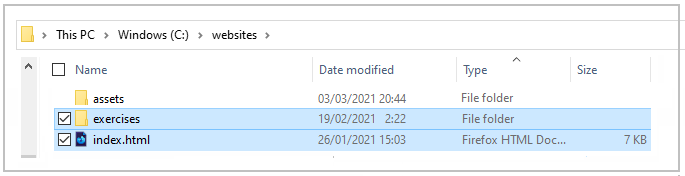
- In File Explorer (Windows) or Finder (Apple Mac), drag-and-drop your index.html file and your 📁 exercises sub-folder to upload them to your repository on GitHub.
- Scroll down to the bottom of the GitHub screen, and accept or edit the short message (Add files via upload) in the Commit changes box.
- Finally, click the green Commit changes button to upload your files.
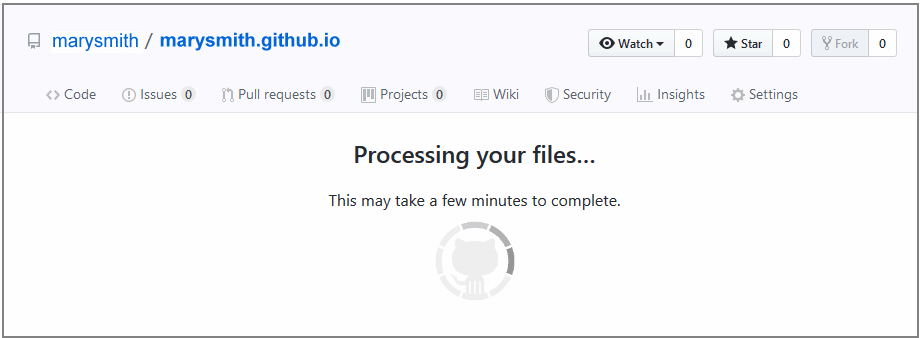
Your updated home page and sample web page are now published on GitHub at web addresses similar to the following:
https://username.github.io/index.html
https://username.github.io/exercises/hero-image.html
It may take a few minutes for your uploaded files to appear on GitHub.