Learning Goals
At the end of this Tutorial, you will be able to:
- Perform basic string manipulation.
- Perform addition, subtraction, multiplication, and division on numeric variables.
- Use correct operator precedence in arithmetic.
- Use increment and decrement operators on numbers.
- Use the compound assignment += operator with strings and numbers.
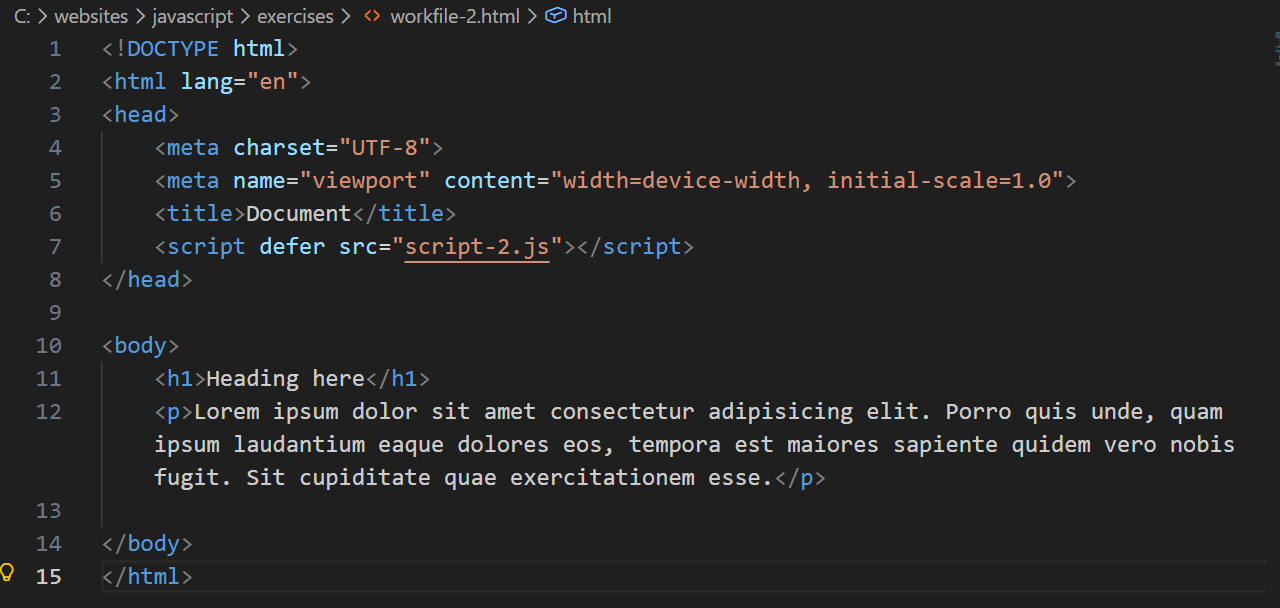
In your javascript/exercises folder, create a new HTML file named workfile-2.html.
Add some sample text with a <h1> heading a <p> text paragraph.
Create a new empty text file named script-2.js and save it in this same folder.
Add a link to script-2.js in your workfile-2.html file using a <script> tag with the defer attribute.
Working with string variables
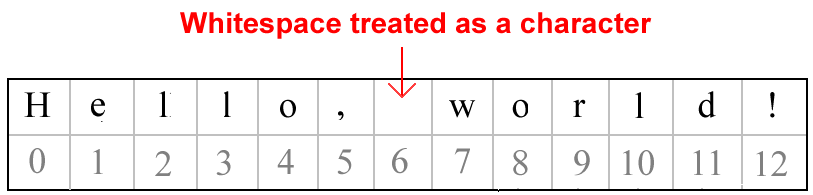
JavaScript assigns an index number to each character in a string, starting with 0. This is called zero-based indexing. Each character in a string can be accessed by its position-based index number within square brackets [n]. See below.
myStr[0] |
Outputs the first character in the string |
myStr[5] |
Outputs the sixth character in the string |
myStr[12] |
Outputs the last character in the string |
Copy the sample code below into your script-2.js workfile.
// Using [] notation to access position of characters within string
let myStr = "Hello, World!";
console.log(`Position [0]: ${myStr[0]};`) // H
console.log(`Position [5]: ${myStr[5]};`) // ,
console.log(`Position [6]: ${myStr[6]};`) // whitespace
console.log(`Position [7]: ${myStr[7]};`) // W
console.log(`Position [12]: ${myStr[12]};`) // !The first character in the string is H corresponds to index position 0. The last character is !, which corresponds to index position 12.
Note that the whitespace character, entered with the Spacebar also has an index value, at 6.
Being able to access every character in a string with the square bracket [] notation makes it easy to access and manipulate strings.
Finding the length of a string
Every string has a .length property that reveals the number of characters in the string. The syntax is as follows.

Copy the following example to your workfile. It should output a string length of 13 to the console.
// String length
console.log(`Length of string: ${myStr.length}`); // 13Note: the length of a string is always one number greater than the string’s highest index number.
// Last character in string
console.log(`Last character: ${myStr[myStr.length - 1]}`); // !Working with string methods
In JavaScript, the word method describes some action you can perform on a item of code such as a variable. Note that:
- A method ends with a parenthesis ().
- Some methods take arguments (values) inside the parenthesis.
Below is a table of some common string methods.
Method |
Description |
.trim() |
Removes whitespace from both ends of a string. |
.toLowerCase() |
Converts all characters in a string to lowercase. |
.toUpperCase() |
Converts all characters in a string to uppercase. |
Copy the following examples to your script-2.js workfile.
// ======== MANIPULATNG STRING CONTENT ========
let strUserName = " John Smith ";
// Remove whitespace
console.log(strUserName.trim()); // "John Smith" (without quotes)
// Change case
console.log(strUserName.toLowerCase()); // " john smith " (without quotes)
console.log(strUserName.toUpperCase()); // " JOHN SMITH " (without quotes)These methods are useful for cleaning up user input to forms or for formatting text for display.
In addition to removing whitespaces, .trim() also removes tab, no-break space and line terminator characters.
Chaining string methods
You can chain (combine) string methods together in a single expression. See below.
// Chaining methods
console.log(strUserName.trim().toLowerCase());String methods do not change string values
Important: string methods do not change the original string value. Instead, a string method will create a new string with the changes applied.
To demonstrate this fact, copy the examples below to your workfile. In every case, you can see that the original string is unchanged.
// === STRING METHODS DO NOT CHANGE ORIGINAL STRING VALUES ===
// Original string
let strMessage = "Hello from JavaScript string variable";
console.log(strMessage); // Original: Hello from JavaScript string variable
// This does NOT change the original string
strMessage.toUpperCase();
console.log(strMessage); // Unchanged: Hello from JavaScript string variableTypically, the reason you apply a string method is that you want to change the original value. To do this, you need to reassign the transformed value back to the original string. See below.
// To actually change the value, you need to assign the result back
strMessage = strMessage.toUpperCase();
console.log(strMessage); // HELLO WORLDIn summary, if you want to modify a string value, you need to:
- Use a string method to create the new string
- Assign that new string back to a variable (either the original variable or a new one)
Concatenating (joining) strings together
Joining two or more string variables is known as concatenation. You can achieve this using template literals. Copy the example below.
// ======== CONCATENATING STRINGS ========
// Joining strings with template literals
let txtFirstName = "John";
let txtLastName = "Lennon";
let txtFullName = `${txtFirstName} ${txtLastName}`;
console.log(`Full name: ${txtFullName}`); // John LennonA second and older option for joining strings is to use the + operator.
// Joining strings with the + operator
txtFullName = txtFirstName+ " " +txtLastName;
console.log(`Full name: ${txtFullName}`); // John LennonBoth methods will output the same result.
Using the += operator with strings
JavaScript offers a compound assignment += that combines two operations:
- It adds the value on the right to the variable on the left
- It assigns the result back to the variable on the left
Here are two examples:
// Compound assignment operator +=
let greeting = "Hello";
greeting += " there"; // Hello there
greeting += "!"; // Hello there!
console.log(greeting);
let story = "Once upon a time";
story += " there was a developer";
story += " who loved to code";
story += " and debug all day long.";
console.log(story)Working with numeric variables
A numeric variable is a variable that stores a number. A numeric variable can store:
- Integers: The are whole numbers that may be positive or negative, such as 25 or -10.
- Floating point numbers: Also called floats for short, these are numbers with a decimal point, such as 9.99 or -100.
Assigning numbers to variables
To assign a number to a variable, do not wrap the value in single or double quotes, or backticks.
Copy the following code to your script-2.js workfile.
// ======== ASSIGN NUMBERS TO VARIABLES ========
const myVar1 = 1234; // JavaScript treats myVar1 as a number
const myVar2 = "1234"; // JavaScript treats myVar2 as a string
const myVar3 = '1234'; // JavaScript treats myVar3 as a string
const myVar4 = `1234`; // JavaScript treats myVar4 as a string
console.log(`${myVar1} ${myVar2} ${myVar3} ${myVar4}`); // 1234 1234 1234 1234Here are two values that JavaScript will accept as valid numbers.
// Valid numbers
let Temperature = -6.3456 // Valid number
let errorRate = .2727 // Valid numberAnd here are two values that are not valid numbers in JavaScript.
// Not valid numbers - or valid strings either!
let userIncome = 34,000; // Error. Contains a comma
let productID = 645w29; // Error. Contains a letter characterIn fact, they are not even valid variable assignments. This is because JavaScript cannot understand what type of data type you want to create. Each line will throw an error.
Delete the above two lines that generate errors from your script-2.js workfile before continuing.
Arithmetic operations
You can perform arithmetic with numeric variables by using the operators set out in the table below.
Operator |
Operator Key Used |
Description |
x + y |
The plus key |
Adds the value of x and the value of y. |
x - y |
The dash key |
Subtracts the value of y from the value of x. |
x * y |
The asterisk key |
Multiplies the value of x by the value of y. |
x / y |
The forward slash key |
Divides the value of x by the value of y. |
See the simple examples below.
// Arithmetic with JavaScript
const firstNum = 12;
const secondNum = 8;
console.log(`Addition (12+8): ${firstNum + secondNum}`); // 20
console.log(`Subtraction (12-8): ${firstNum - secondNum}`); // 4
console.log(`Multiplication (12*8): ${firstNum * secondNum}`); // 96
console.log(`Division (12/8): ${firstNum / secondNum}`); // 1.5Operator precedence
JavaScript follows the rules of arithmetic when working with numeric variables and numbers:
- Division first, followed by multiplication, then addition and finally subtraction.
For example, the following series of statements gives a result of 11 because JavaScript first multiplies 2 by 3 (resulting in 6) and then adds 5.
// Operator precedence
console.log(`5 + 2 * 3: ${5 + 2 * 3}`); // returns 11 You can force JavaScript to perform calculations in a particular order by using parentheses ().
For example, the following calculation gives a result of 21. JavaScript first adds 5 and 2, because they are within (). And only then multiplies that result by 3 to give 21.
// Operator precedence with parentheses
console.log(`(5 + 2) * 3: ${(5 + 2) * 3}`); // 21Increment and decrement operators
JavaScript supports increment ++ and decrement -- prefix operators that increase or reduce the value of a numeric variable by one.
See the sample code below.
// Increment and decrement operators
let myNum1 = 7;
let myNum2 = 24;
console.log(`myNum1 is 7`);
console.log(`Increment operator (++myNum1) is ${++myNum1}`); // 8
console.log(`myNum2 is 24`);
console.log(`Decrement operator (--myNum2) is ${--myNum2}`); // 23Using the += operator with numbers
You have already learnt how to use compound assignment += operator to work with text. You can also use this operator to work with numeric values.
The += operator:
- Adds the value on the right to the variable on the left
- Assigns the result back to the variable on the left
Here are two examples:
// === Compound assignment operator += with numbers ===
let count = 5;
console.log(count); // 5
count += 3; // count is now 8
count += 2; // count is now 10
// Keeping score in a computer game
let playerScore = 100;
playerScore += 50; // Player hits target
playerScore += 25; // Player collects coin
playerScore += 75; // Player completes level
console.log(playerScore); // 250
// Calculating compound interest
let balance = 1000;
let interest = balance * 0.05; // 5% interest
balance += interest;
console.log(balance); // 1050

JavaScript has some VERY WEIRD behaviours when dealing with numbers. For this reason, it is recommended to test every variable to ensure it really is a numeric variable before using it in a calculation. Also, JavaScript in some circumstances will convert a string to a number and vice versa.
Try it yourself
In your workfile...
---
1. String Cleaning
Create a variable called cityInput with the value " londON " (note the spaces and mixed case).
- Output the length of the string.
- Use a method to remove the extra spaces.
- Chain methods to remove the spaces AND convert the text to all capital letters ("LONDON").
---
2. The Bill Calculator
Create three variables: itemPrice (set to 5), quantity (set to 3), and tax (set to 4).
- Use console.log() to calculate the total bill. Use parentheses () to ensure the tax is added after the items are multiplied.
---
3. The Temperature Converter
Create a temperature converter that takes a Celsius temperature of 25 and converts it to Fahrenheit using this formula: (C × 9/5) + 32.
---
4. The Scoreboard
Create a variable called score and set it to 0.
- The player hits a target: use += to increase the score by 10.
- The player hits a bonus: use += to multiply the score by 2.
- The player collects a life: use the increment operator ++ to add 1 to the score.
- Output the final score to the console.
More learning resources
Tutorial Quiz
Tutorial Podcast
Sample AI prompts
              I am learning about JavaScript string methods. Can you explain why the following code does not change the value of the variable?


        let city = "paris";

        city.toUpperCase();

        console.log(city); // Still outputs "paris"


Explain the concept of "immutability" in simple terms using this example.Create a set of 3 multiple-choice quiz questions to test my understanding of "Operator Precedence" in JavaScript. Include trick questions that use parentheses to change the order of calculation.
Write a code snippet that takes a messy input string like " jAvAScrIPt ", trims the spaces, converts it to all lowercase, and then capitalizes just the first letter (to make it "Javascript"). Explain each step.