Learning Goals
At the end of this Tutorial, you will be able to:
- Create and populate an array with square brackets [] notation.
- Use the .length property to find the number of items in an array.
- Use array indexes to access individual items in an array.
- Loop through the items in an array with the .forEach() method.
- Destructure individual items of an array to variables.
For this Tutorial, you can reuse the workfile-8.html and script-8.js exercise files you created in the previous Introduction to objects Tutorial.
Storing spreadsheet-type data in arrays
In the previous Introduction to objects Tutorial, you learnt that a JavaScript object can be used to store the related data in a single row of a spreadsheet such as shown below.
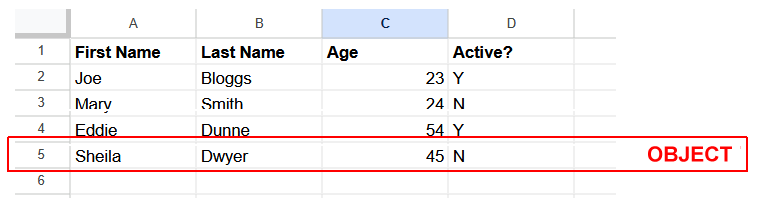
But what about all the rows of a spreadsheet? How can they be stored in JavaScript? The answer is: in an array.
You can think of an array as a list of things. The things (usually called items or elements) in an array could be objects. But they can also be simple variables such as strings or numbers.
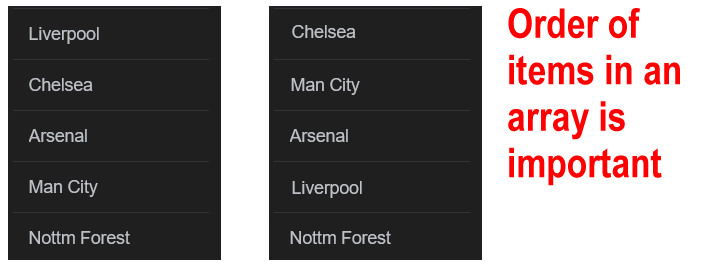
In an array, the order in which the items are stored is important. For this reason, an array is more properly defined as an ordered list of items.
Naming your arrays
Object names follow the usual JavaScript rules: they are case-sensitive and cannot contain spaces or the dash (-) character. Here are two tips:
- Begin array names with arr, such as arrStudents and arrEmployees.
- Use plural nouns for array names, such as arrProducts rather than arrProduct and arrUsers rather than arrUser.
Creating an array with [] notation
You can create an array with an array name and pair of square brackets []. This is called literal notation.
Copy the following array code to your script-8.js file.
// Declaring an array with items on separate lines and a trailing comma
const arrUserFirstNames = [
"Camille",
"Emma",
"Gabriel",
"Romy",
];As you can see above, there is a , character after each item. Also, an optional trailing comma is added after the final item "Romy". Developers sometimes add this to make it easier to insert or remove items later.
You can see some further examples of arrays below.
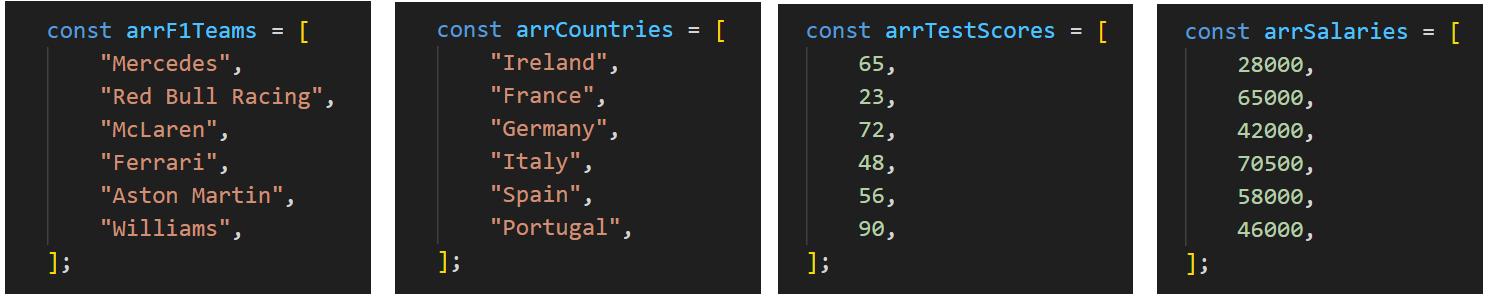
In practice, arrays are commonly typed on a single line. For extra readability, individual array items are separated by a single space.
Copy these three arrays to your script file.
const arrUserIDs = [4032, 5229, 1234, 6317];
const arrCars = ["Volvo", "Citreon", "BMW", "Opel", "Peugeot", "Ford"];
const arrPrices = [11.99, 24.50, 34.25, 49.99];
Strings are typically wrapped with double "" rather than single quotes ''.
It is better to use const rather than let when creating arrays. This does not prevent your code from modifying items in an array later as needed. But it does prevent the array from being accidentally overwritten by another array (or variable or object) with the same name that might exist elsewhere in the same scope.
Here is the general form of an array of numbers.

And here is the general form of an array of strings.

In JavaScript, items in an array need not be the same data type. But it is not recommended to mix multiple data types in the same array.
Arrays and index values
Each array item has an identifying integer (whole number) known as an index. Indexes begin at zero and the number is written inside square brackets [].

For example, an array with four items has the following indexes: [0], [1], [2] and [3]. JavaScript arrays are said to be zero-indexed.
In this respect, items in an array are similar to characters in a string variable.
Add the following code to your script file to output items from the three arrays, as identified by their index position.
// === Outputting array items by index position ===
console.log(`First item of arrUserFirstNames array: ${arrUserFirstNames[0]}`);
console.log(`First item of arrPrices array: ${arrPrices[1]}`);
console.log(`First item of arrCars array: ${arrCars[2]}`);
console.log(`First item of arrUserIDs array: ${arrUserIDs[3]}`);The .length property of an array
Every array has a .length property that reveals the number of items in the array. The syntax is as follows.

Here is some sample code to copy.
// === Array length property ===
console.log(`Number of items in arrUserFirstNames: ${arrUserFirstNames.length}`);
// 4
console.log(`Number of items in arrPrices: ${arrPrices.length}`);
// 4Remember: the length of an array is always one number greater than the array's highest index number.
We can use this to access the last item in an array - the item with the highest index number. See below.
// === Accessing last item in array ===
console.log(`Last item of arrCars array: ${arrCars[arrCars.length-1]}`);
// Ford
console.log(`Last item of arrStudentIDs array: ${arrUserIDs[arrUserIDs.length-1]}`);
// 6317Looping through an array
Often, you will want to perform the same operation on all the items in an array - such as displaying their values.
In modern JavaScript, the preferred way of looping through an array is to use the .forEach() method. See the example below.
// === Looping through array values ===
// Looping through the arrUserFirstNames array
arrUserFirstNames.forEach(userFirstName => {
console.log(userFirstName);
});
// Looping through the arrPrices array
arrPrices.forEach(price => {
console.log(price);
});
// looping through the arrCars array
arrCars.forEach(car => {
console.log(car);
});In the above examples, the variables userFirstName, price and car are parameters that represent the current array item being processed. They are typically named in a single form of the array name. Another option is to use a generic name such as item or element.
The => operator is called a fat arrow symbol.
The general form of the .forEach() loop is as shown below.

With a .forEach() loop, you can perform any valid operation on the items in an array. Note that the .forEach() loop does not change the items in the array. It simply runs some code (like displaying output) for each item. No new data is created or stored in the array itself.
Creating an empty array
Sometimes you need to start with an empty list and fill it with data later (for example, a shopping cart before you start shopping).
To do this, you declare the array with an empty pair of square brackets [].
In modern JavaScript, it is best practice to use const even for empty arrays, and then use the .push() method to add items to it.
// === Creating an empty array and adding items ===
// 1. Create an empty array
const arrSongs = [];
// 2. Add items to the end of the array using .push()
arrSongs.push("Yesterday");
arrSongs.push("Wonderwall");
arrSongs.push("Stairway to Heaven");
console.log(arrSongs); // Output: ["Yesterday", "Wonderwall", "Stairway to Heaven"]
The .push() method will be explored in later Tutorials.
Why use const if the array is changing?
You might wonder why we use const if we are adding items to the array.
In JavaScript, const prevents you from completely replacing the array with a new one. However, it allows you to modify the contents inside the array.
Array destructuring
In a similar way to destructuring objects, you can also destructure arrays. In a single line of code, you can extract or unpack items from an array and assign them to variables.
For example:
// Create and populate a new array
const arrFruits = ["Apple", "Banana", "Orange", "Pear"];
// Assign array items to variables with destructuring
let [fruitOne, fruitTwo, fruitThree, fruitFour] = arrFruits;
console.log(`Fruit at position [0]: ${fruitOne}`);
console.log(`Fruit at position [1]: ${fruitTwo}`);
console.log(`Fruit at position [2]: ${fruitThree}`);
console.log(`Fruit at position [3]: ${fruitFour}`);You can skip items in the array as follows:
// Create and populate a new array
const arrCities = ["Dublin", "Cork", "Belfast", "Derry"];
// Skipping an array item while destructuring
let [firstCity, , thirdCity] = arrCities;
console.log(`Array item at position [0]: ${firstCity}`);
console.log(`Array item at position [2]: ${thirdCity}`);NOTE: One Comma = One Skip: If you want to skip two items, you need two empty commas. For example, [a, , , d].
Try it yourself
In your script file...
---
Create an array called arrColours with five different colour names. Then, in the console, output:
- The first colour
- The last colour using the array's length
- The total number of colours in the array
---
Create an array called arrMonths with the first three months of the year. Then:
- Use destructuring to assign each month to a separate variable
- Try destructuring with skipping the second month
- Output the extracted values to the console
More learning resources
Tutorial Quiz
Tutorial Podcast
Sample AI prompts
Create a visual explanation of how array indexing works in JavaScript. Compare an array to a real-world example like numbered parking spots in a parking lot, or seats in a theatre. Explain why arrays start at index 0 instead of 1, and demonstrate common indexing mistakes beginners should avoid.
Write a step-by-step guide explaining how .forEach() works with simple arrays of strings and numbers. Explain how .forEach() accesses each item in the array.
Explain array destructuring using a real-world analogy, like unpacking a box of items. Show how destructuring compares to traditional array access methods, demonstrate skipping elements, and explain practical use cases where destructuring makes code more readable and efficient.